PostgreSQL Integration
Integration of PostgreSQL with Entropy Data.
The PostgreSQL integration is managed within Entropy Data. Configure the connection and sync schedule to start syncing with PostgreSQL.
No additional deployments are needed.
Features
- Asset Synchronization: Sync schemas, tables, and views from PostgreSQL to Entropy Data as Assets.
- Column Metadata: Column descriptions, nullability, default values, and precision/scale are automatically captured during ingestion and stored as asset metadata.
Prerequisites
You need an Entropy Data Enterprise License or the Cloud Edition. To enable the integration, set APPLICATION_INGESTIONS_ENABLED to true in your environment. See Configuration for more information.
To start, navigate to Settings > Integrations > Add Integration.
This opens a wizard that guides you through configuring the integration.
Configuration
Select the Integration Type
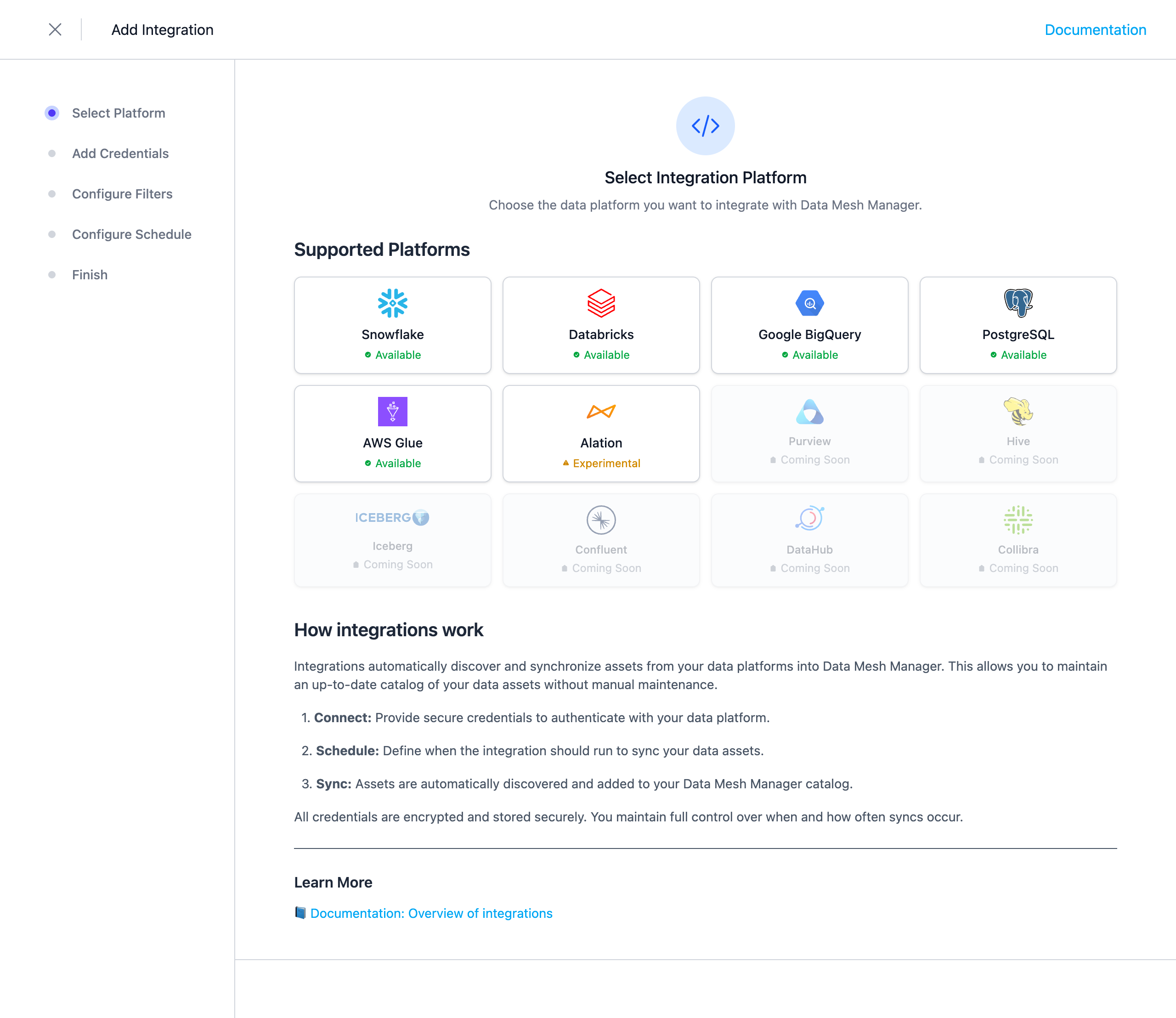
Select PostgreSQL from the list of available integrations.
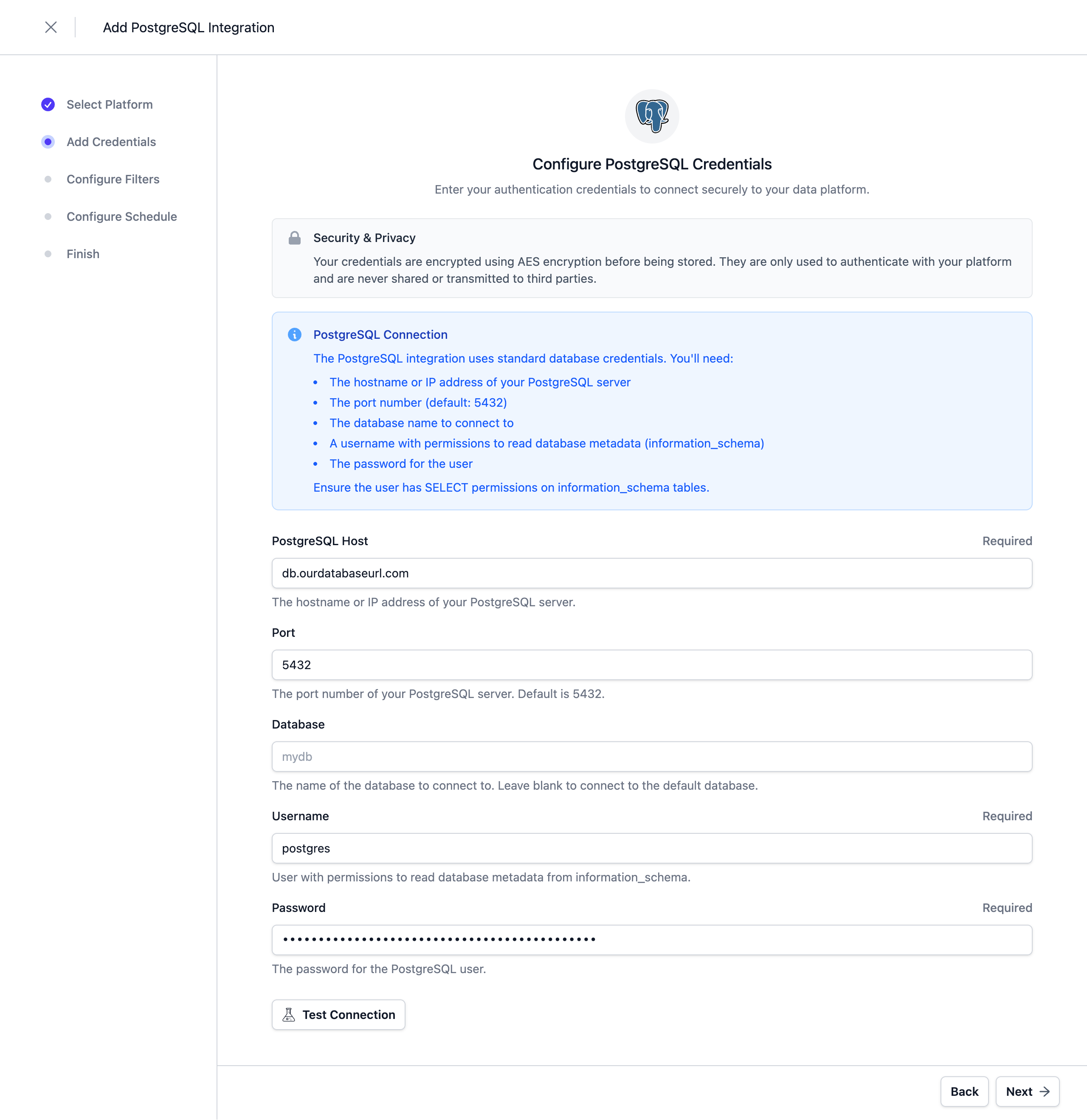
Configure the Connection
Provide the following connection details:
| Parameter | Description |
|---|---|
| Host | The hostname or IP address of the PostgreSQL server |
| Port | The port number (default: 5432) |
| Database | The name of the database to connect to |
| Username | The username for authentication |
| Password | The password for authentication |
Note: Credentials are stored encrypted in the Entropy Data database. To enable encryption in your environment, set a 64 hex character
APPLICATION_ENCRYPTION_KEYSin your environment (see Configuration).
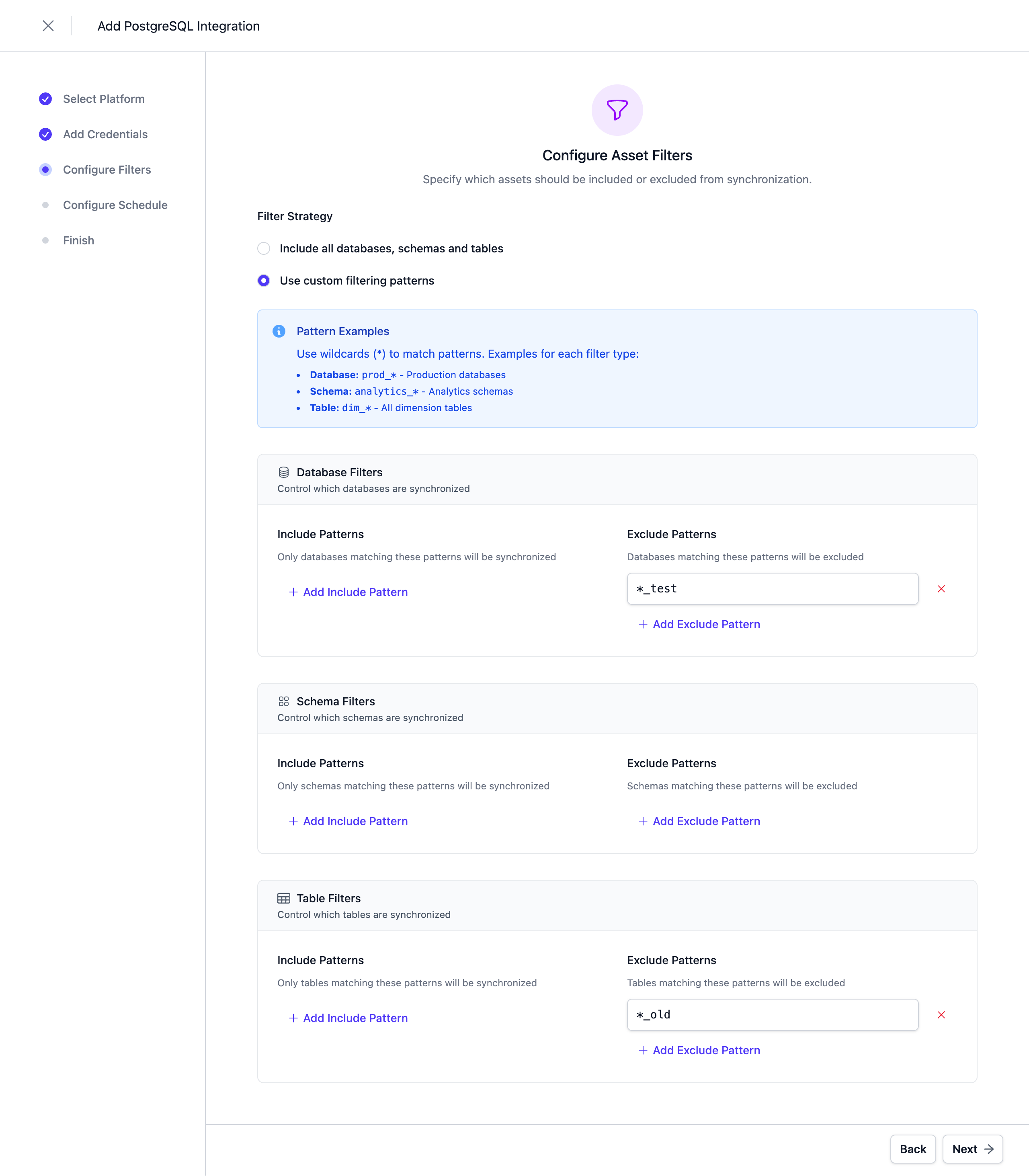
Configure Filters
Configure filters to limit which assets are synchronized. Both include and exclude filters are supported. For PostgreSQL, filters can be applied to Schemas, Tables, and Views.
Filters support '*' as a wildcard character to match any number of characters.
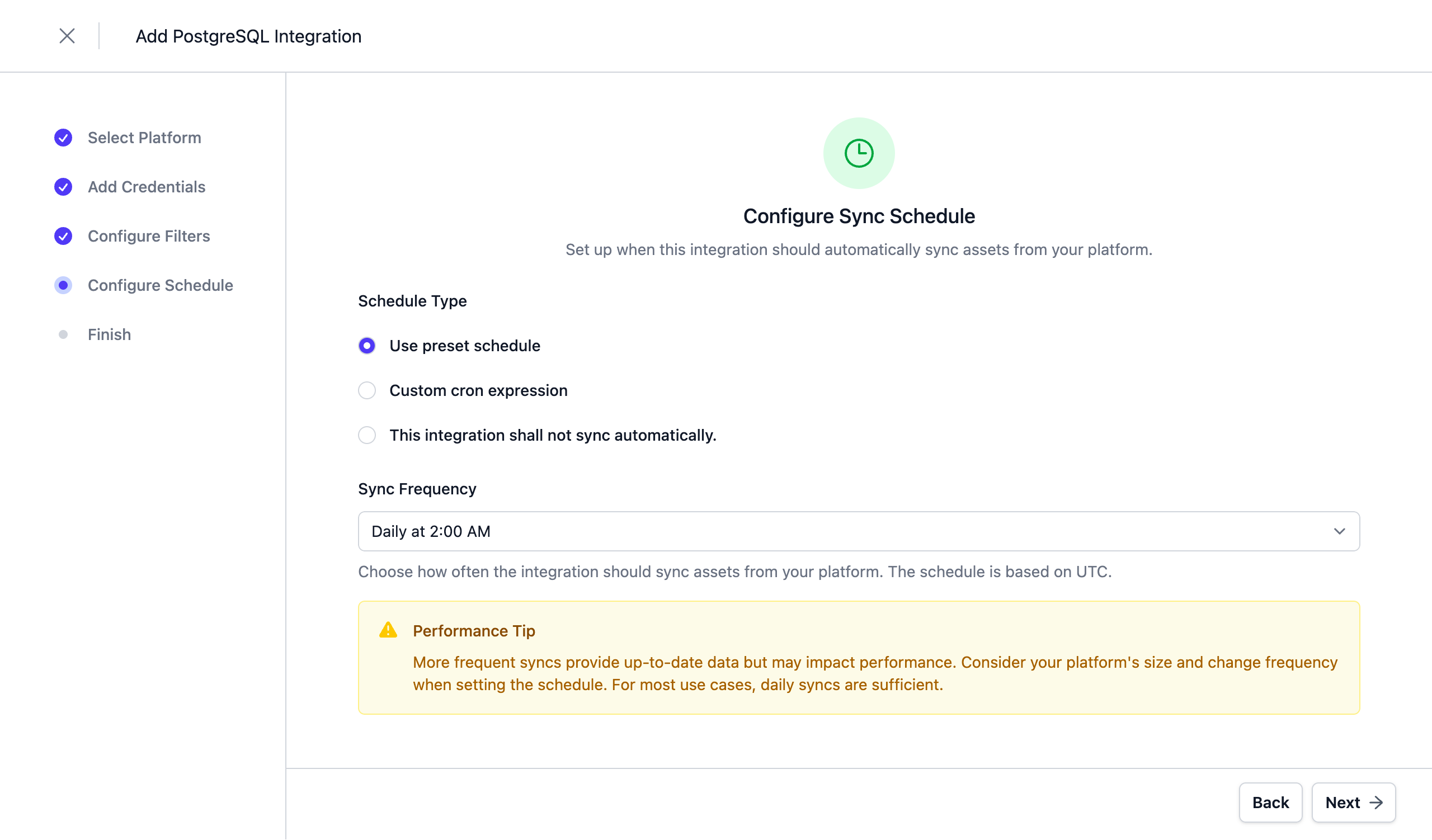
Configure Schedule
Set a schedule to automatically synchronize assets. You can choose from predefined schedules or define a custom schedule using the cron expression format.
Note: All schedules use the UTC timezone, so make sure to take this into account when configuring your schedule. Please do not synchronize the assets more than once or twice per day. We reserve the right to disable the integration if this happens. You will be able to trigger a synchronization manually if you need an immediate update.
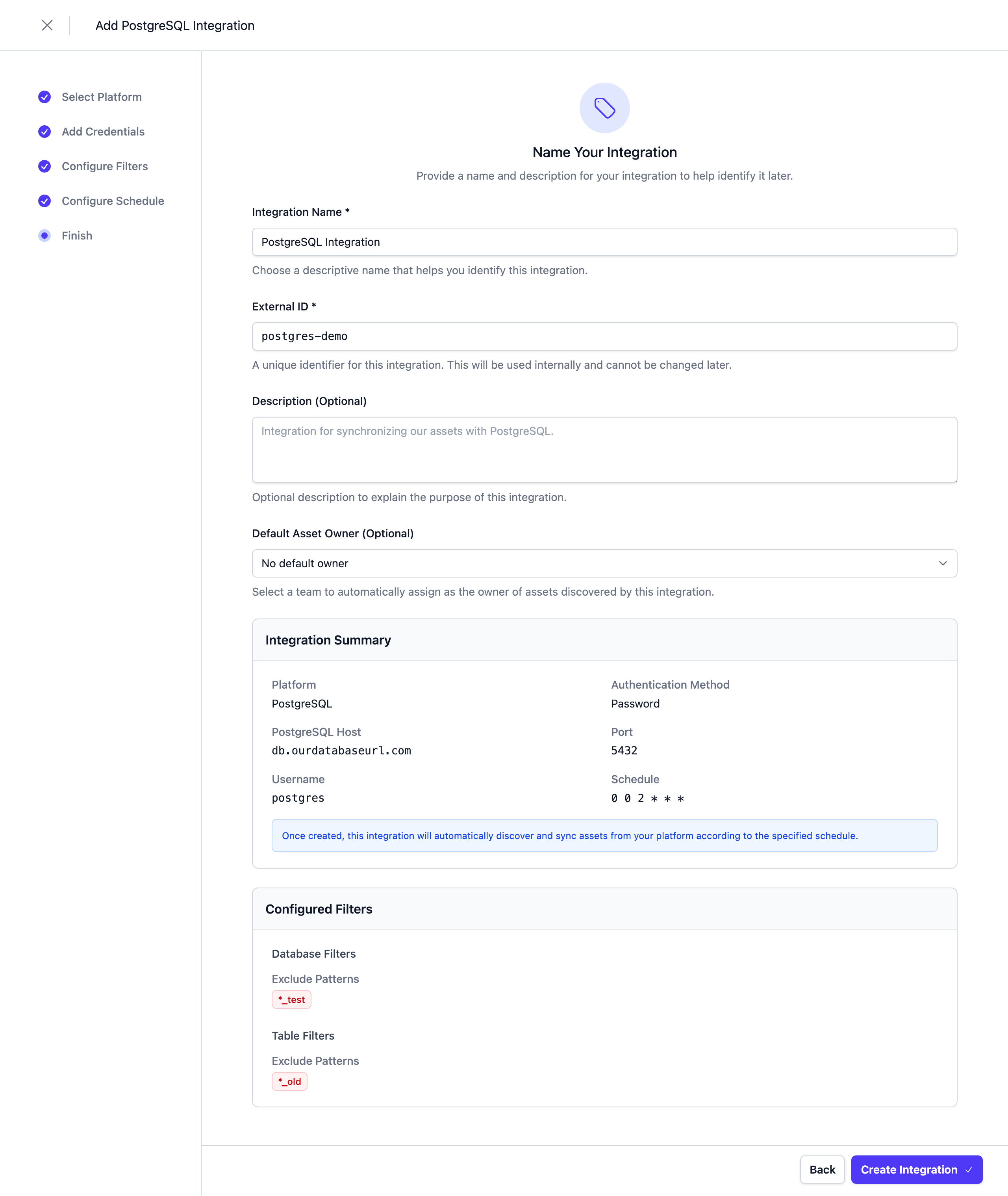
Complete the Integration Configuration
Choose a unique name for the integration, review your configuration, and click Create Integration.
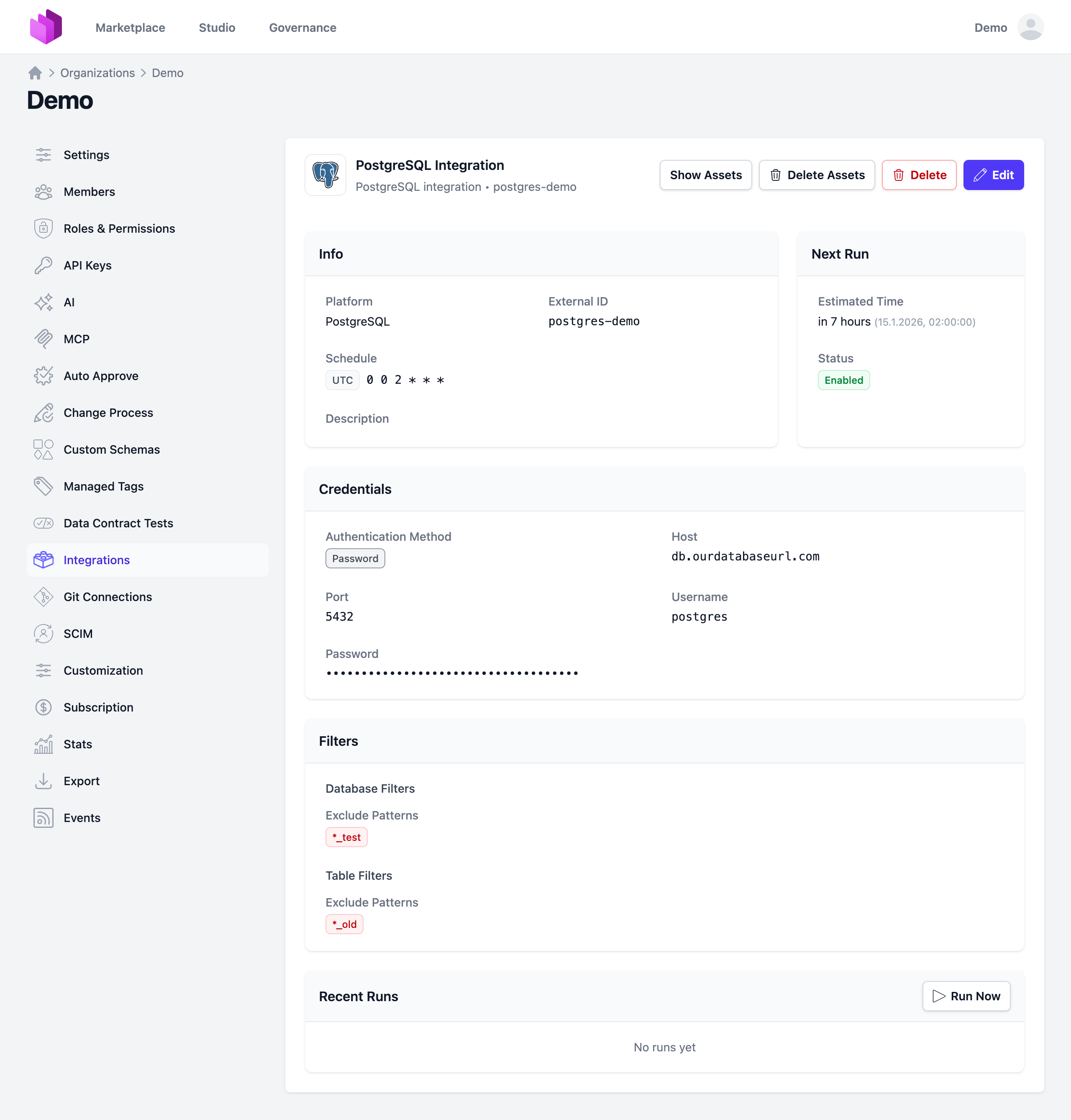
Next Steps
The integration is now configured and will run according to the schedule. To check the integration status, navigate to Settings > Integrations. Here you'll find the current status and the last 10 integration runs.
 You can adjust the integration configuration at any time. The configuration is saved in YAML format with syntax validation support in the editor.
You can also change and test credentials in the edit view.
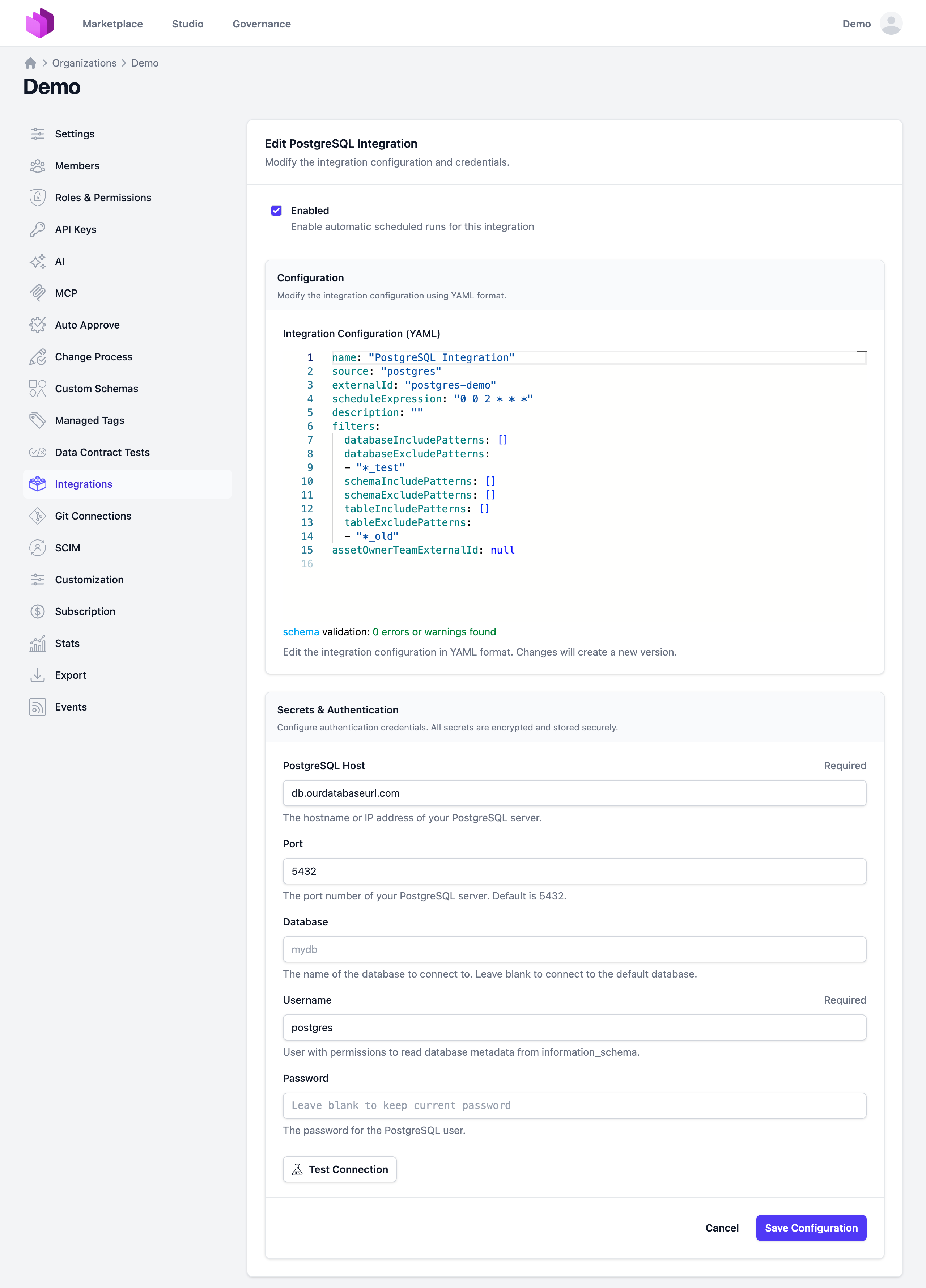
Note: The previously stored credentials are not displayed in the edit view for security reasons. If you want to change them, add new credentials and save the integration.
Deselecting the Enabled checkbox disables the automatic schedule. Manual integration runs are still possible.