
Configuration
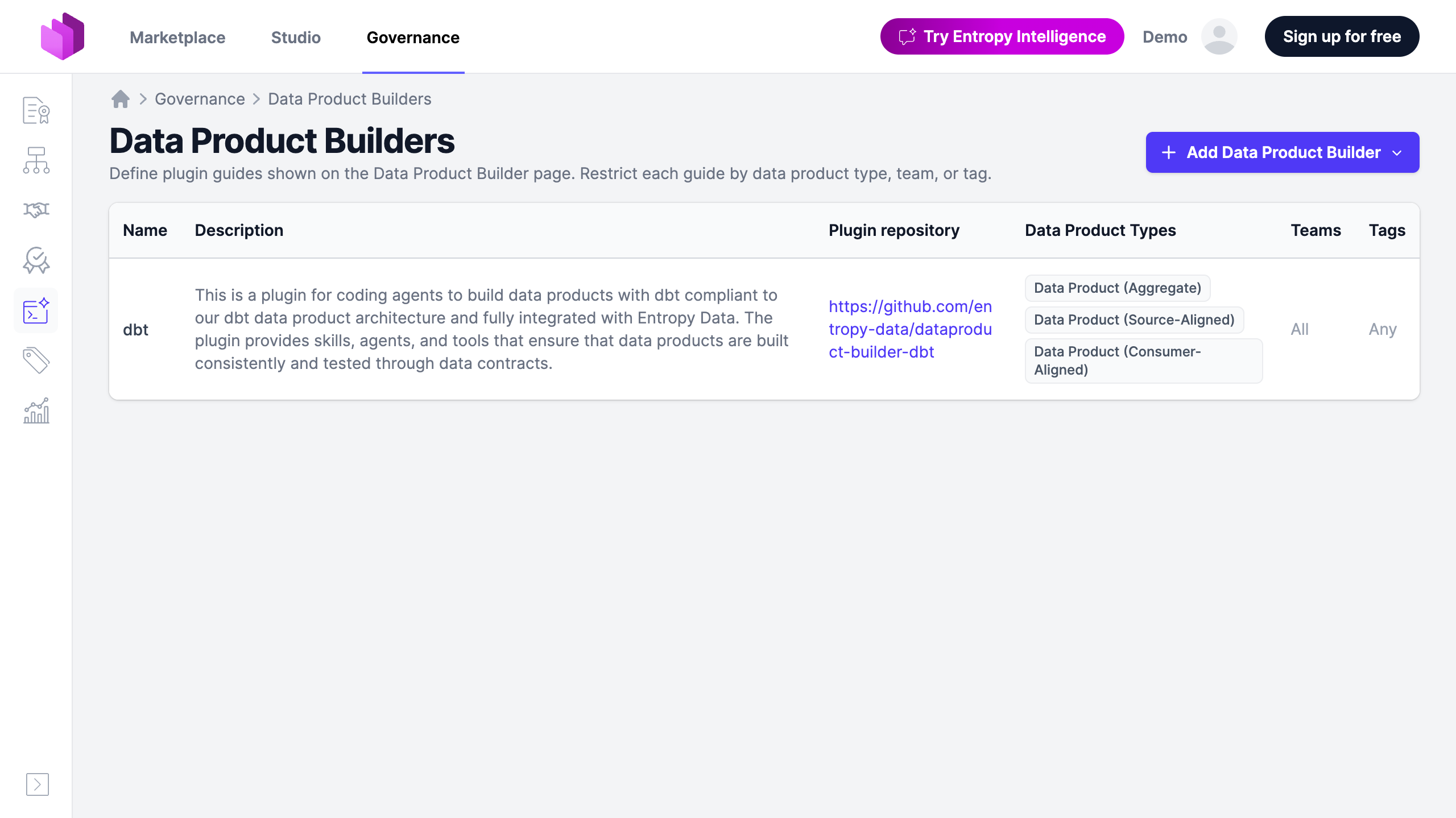
Data Product Builders are managed under Governance → Data Product Builders. The page is editable by organization owners and members of the governance group. Each builder shown here surfaces on every matching data product's Data Product Builder page (opened from the Implement with Data Product Builder button on the data product).
Add a builder
Click Add Data Product Builder in the top right. Two paths:
- From a template — Entropy Data ships preconfigured templates for the reference plugins. Picking a template creates a builder with the plugin repository URL, default usage instructions, default capabilities, supported coding agents, and applicable data product archetypes already filled in. The builder opens in edit mode so you can adjust the instructions, restrict scope, or change the repository URL to point at a fork.
- Blank — start with empty fields. Use this when you maintain a fork of a reference plugin under your own GitHub organization, or when you build a plugin from scratch.
Templates already added to the organization do not appear in the dropdown a second time. Templates marked Coming soon are visible but disabled.
Builder fields
Plugin
- Name — short identifier shown in the dropdown and on the data product page (for example,
dbt,dbt (Snowflake)). - Plugin repository URL — the GitHub (or other Git) URL of the plugin. The install commands rendered for each coding agent use this URL. Entropy Data also pulls the repository's
README.mdto preview the plugin on the builder's detail page. - Description — one or two sentences shown in the list and on the Data Product Builder page.
Supported coding agents
Pick which coding agents the plugin supports. The Data Product Builder page renders an install card per selected agent.
- Claude Code
- OpenAI Codex
- GitHub Copilot CLI
The install commands are generated from the repository URL.
Usage instructions
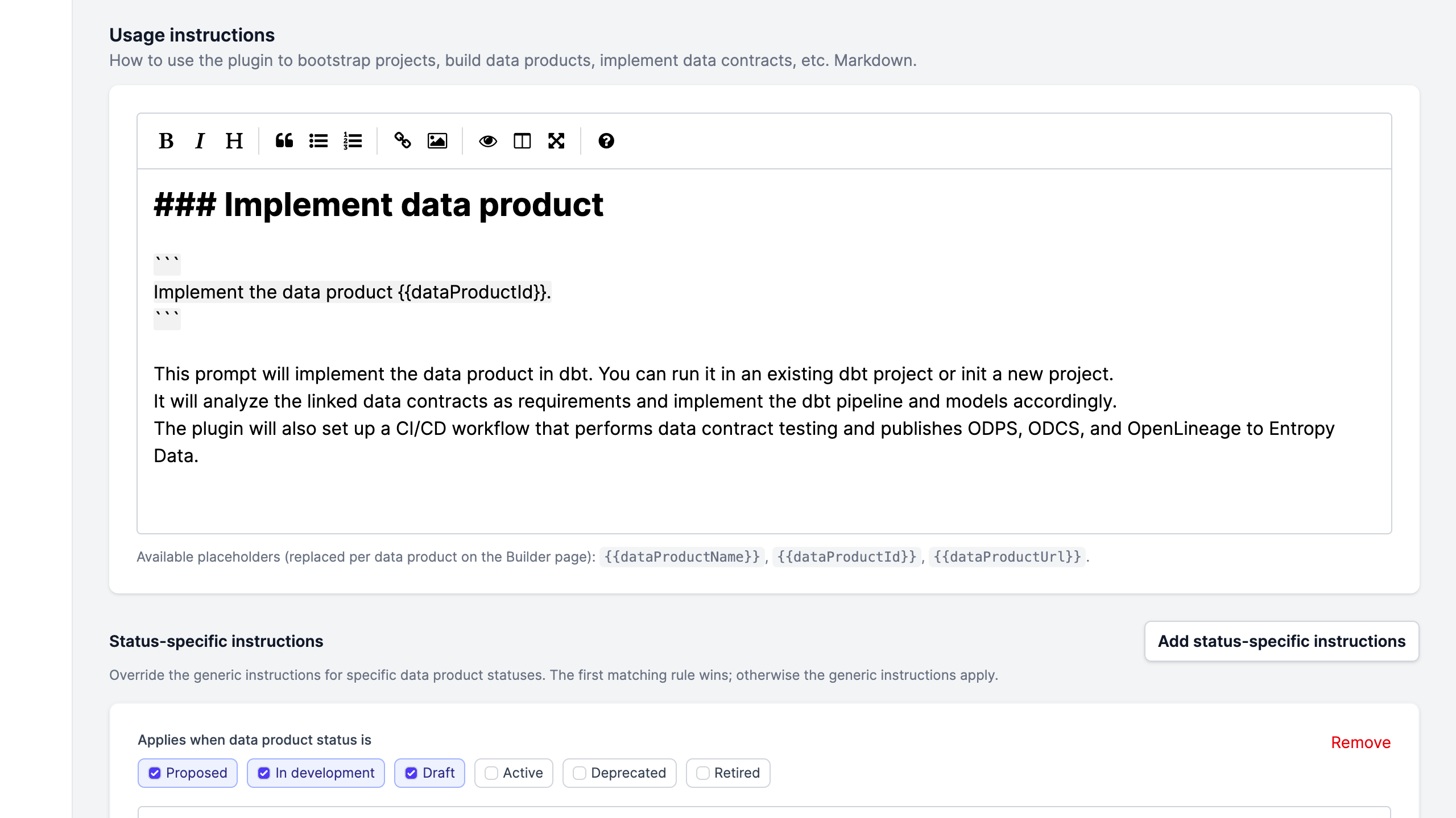
The default instructions shown on the Data Product Builder page. Markdown is rendered to HTML. Variables are substituted at render time:
| Variable | Replaced with |
|---|---|
{{dataProductId}} | The data product's external ID |
{{dataProductName}} | The data product's display name |
{{dataProductUrl}} | The absolute URL of the data product page |
Use prompt-style examples wrapped in fenced code blocks so users can copy them directly into the agent:
### Implement data product

```
Implement the data product {{dataProductId}}.
```text

This prompt will implement the data product in dbt. The plugin analyzes
the linked data contracts as requirements and implements the dbt
pipeline and models accordingly.
Status-specific usage instructions
A single set of instructions rarely fits both a draft and a live data product. Add one or more status-specific blocks to override the default instructions when the data product is in a particular status.
Each block selects one or more statuses (for example, proposed, draft, in development) and provides the Markdown to show when the data product matches. If multiple blocks match, the first one wins. If no block matches, the default instructions are used.
Typical split:
- Draft / in development — bootstrap the project, scaffold the data contract, find upstream data sources.
- Active — evolve the contract, run live data tests, upload example data.
Capabilities
Long-form Markdown describing what the plugin can do. Shown on the builder's detail page, not on the data product's Data Product Builder page. Use this to document the skills, hooks, and templates the plugin ships, with links to the corresponding files in the plugin repository.
Restrictions
Limit which data products see this builder. All three filters use AND semantics; an unrestricted filter matches everything.
- Data product types — pick one or more archetypes (source-aligned, aggregate, consumer-aligned, or any custom archetypes the organization has defined). Leave empty to apply to every archetype.
- Teams — limit to specific teams. A data product owned by a child team also matches a builder restricted to one of its ancestor teams.
- Tags — limit to data products that carry at least one of the listed tags. Useful for narrowing a plugin to a specific platform (
platform/snowflake) or domain.
A builder with no restrictions shows up on every data product.
Custom builders
To use a forked plugin or a plugin built in-house, create a blank builder:
- Add Data Product Builder → Blank.
- Set Name and Plugin repository URL to the fork.
- Pick the supported coding agents. Most forks keep parity with the reference plugin.
- Paste the usage instructions (typically copied from the upstream template, with company-specific changes).
- Set restrictions so the builder only appears where the fork makes sense.
The customer fork keeps its own release cycle. To pull in upstream changes, rebase the fork and update the description or capabilities in Entropy Data if anything user-facing changes.
Next
- Using on data products — what data product teams see, how matching works, and how the install flow runs.